
WhatsApp Keeps Freezing on iPhone? Here's How to Fix It 2026
Is WhatsApp hanging, freezing, or crashing on your iPhone? Learn the most effective ways to fix slow WhatsApp performance, especially on 64GB and 128GB iPhones running low on storage.

Dolapo Anifowoshe
Is Your WhatsApp Hanging on iPhone? Here's How to Fix It
If your WhatsApp keeps freezing, hanging, or taking forever to open, you're not alone. This is one of the most common complaints among iPhone users in Nigeria and across Africa—especially those using 64GB or 128GB models.
The good news is that, in many cases, the problem isn't caused by low RAM. Instead, it's usually due to insufficient free storage, a very large WhatsApp database, or an outdated version of the app or iOS. When an iPhone's storage is nearly full, apps like WhatsApp can become sluggish, media downloads may fail, and the app may even crash. Apple recommends keeping some free storage available for smooth performance.
In this guide, we'll show you practical steps to get WhatsApp running smoothly again.
Why Does WhatsApp Freeze?
The most common reasons include:
Your iPhone storage is almost full.
WhatsApp contains thousands of photos and videos.
The app hasn't been updated.
iOS is outdated.
Background apps are consuming resources.
Corrupted WhatsApp cache or database.
Temporary software glitches.
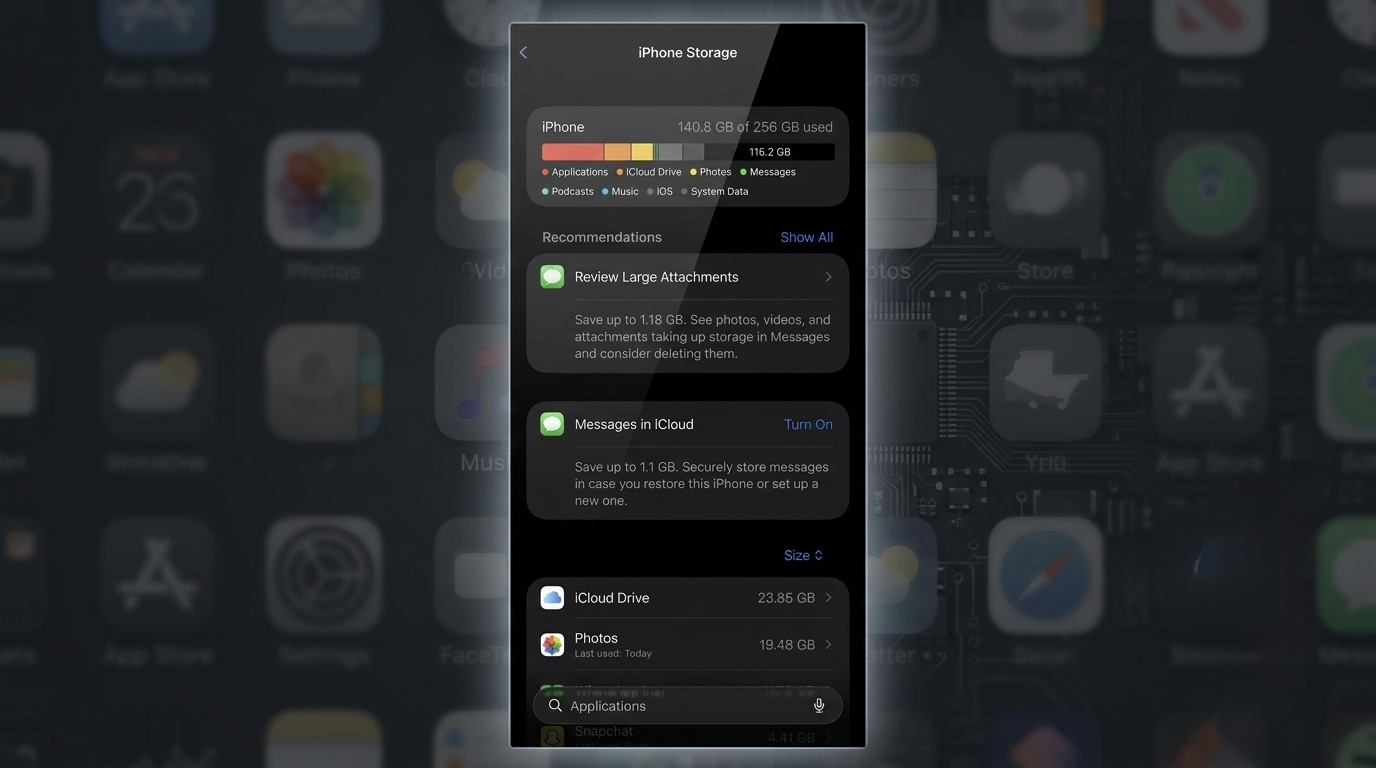
1. Check Your iPhone Storage
This is the first thing you should do.
Go to:
Settings → General → iPhone Storage
If your available storage is less than 5–10GB, your phone may begin to slow down.
Apple recommends keeping free space available because iOS uses it for temporary files, updates, and system performance.
What to Delete
Old videos
Duplicate photos
Downloaded movies
Unused apps
Large documents
2. Clear Large WhatsApp Media Files
Many people don't realize that WhatsApp itself can consume 10GB, 20GB, or even more.
To check:
WhatsApp → Settings → Storage and Data → Manage Storage
You'll see:
Large videos
Forwarded files
Chats using the most space
Delete anything you no longer need.
This can dramatically improve app responsiveness.
3. Restart Your iPhone
It sounds simple, but a restart clears temporary processes and can resolve minor software issues.
Restart your phone after freeing up storage.
4. Update WhatsApp
Older versions of WhatsApp may contain bugs that have already been fixed.
Open the App Store, search for WhatsApp, and install any available update.
Updates often improve stability and compatibility with the latest version of iOS.
5. Update Your iPhone
Apple regularly releases updates that improve performance and fix software bugs.
Go to:
Settings → General → Software Update
Install any available iOS update.
6. Turn Off Automatic Media Downloads
If you're in dozens of WhatsApp groups, your phone may be downloading every image and video automatically.
To change this:
WhatsApp → Settings → Storage and Data
Set Media Auto-Download to:
Photos → Wi-Fi only (or Never)
Videos → Never
Documents → Ask first
This helps prevent your storage from filling up quickly.
7. Upgrade to iCloud+ for More Storage
If your iPhone is constantly running out of space because of photos, videos, WhatsApp backups, and files, consider subscribing to iCloud+.
Apple's cloud storage lets you:
Automatically back up your photos and videos.
Store WhatsApp backups safely.
Sync files across your iPhone, iPad, and Mac.
Free up local storage by enabling Optimize iPhone Storage, which keeps full-resolution photos in iCloud while smaller versions remain on your device. Note that iCloud doesn't increase your iPhone's physical storage—it helps manage it more efficiently.
How to Subscribe
Go to:
Settings → Your Name → iCloud → Upgrade to iCloud+
For many users with 64GB and 128GB iPhones, the 50GB plan is an affordable way to reduce storage pressure and keep important photos, videos, and WhatsApp backups safely stored in the cloud. However, you'll still need to delete unnecessary files occasionally because iCloud complements your device storage rather than replacing it.
8. Offload Unused Apps
Instead of deleting apps completely, iPhone lets you Offload them.
Go to:
Settings → General → iPhone Storage
Tap an unused app and select Offload App.
This removes the app but keeps its documents and data, freeing up space.
9. Back Up and Reinstall WhatsApp (If Needed)
If WhatsApp still freezes after trying the previous steps:
Back up your chats to iCloud.
Delete WhatsApp.
Reinstall it from the App Store.
Restore your chat backup.
Only do this after confirming your backup completed successfully.
Is 64GB Still Enough in 2026?
For light users, 64GB can still be workable.
However, if you:
Use WhatsApp heavily
Record videos
Download TikTok clips
Take lots of photos
Install many apps
you'll likely run out of space quickly.
Today, 128GB is a more comfortable minimum for most users, while 256GB is a better choice for content creators or anyone who keeps a large media library.
Common Myths
WhatsApp hangs because my iPhone has low RAM.
Not usually.
Modern iPhones manage memory efficiently. In most cases, WhatsApp performance issues are linked to low available storage, outdated software, or an oversized media library—not simply the amount of RAM.
Clearing all chats is the only fix.
No.
You can free up space by removing large videos, forwarded files, and unnecessary media without deleting every conversation.
Tips to Prevent WhatsApp from Slowing Down
Keep at least 10GB of free storage if possible.
Delete large videos regularly.
Disable unnecessary automatic downloads.
Update WhatsApp and iOS regularly.
Back up chats periodically.
Leave inactive groups that generate lots of media.
Frequently Asked Questions
Why does WhatsApp freeze even after deleting photos?
The app may still contain a large cache or many videos. Check Manage Storage inside WhatsApp to remove large files.
Will deleting WhatsApp erase my chats?
Yes, unless you've backed them up first. Always verify that your iCloud backup completed successfully before reinstalling.
Is 64GB enough for WhatsApp?
Yes, but only if you actively manage your storage. Heavy users will likely find 128GB or more more comfortable.
Can low battery health cause WhatsApp to lag?
A severely degraded battery can affect overall iPhone performance if performance management is enabled, but it's not the most common cause of WhatsApp freezing. Low storage is a far more frequent culprit.
If WhatsApp has become slow or keeps freezing on your iPhone, don't assume it's time to buy a new phone. In many cases, the issue can be resolved by freeing up storage, managing WhatsApp media, updating the app and iOS, and keeping enough space available for the system to operate efficiently.
For users with 64GB and 128GB iPhones, developing good storage habits—such as deleting unnecessary media and disabling automatic downloads—can make a noticeable difference and help your device stay responsive for much longer.
Final Thoughts
If WhatsApp has become slow or keeps freezing on your iPhone, don't assume it's time to buy a new phone. In many cases, the issue can be resolved by freeing up storage, managing WhatsApp media, updating the app and iOS, and keeping enough space available for the system to operate efficiently.
For users with 64GB and 128GB iPhones, developing good storage habits—such as deleting unnecessary media and disabling automatic downloads—can make a noticeable difference and help your device stay responsive for much longer.
Advertisement
Responsive
Related Articles

What to Expect from the iPhone 18 Series in 2026 | Features, Release Date & Comparison
Apple's iPhone 18 series is expected to launch in September with improved AI, cameras, performance and battery life. Here's everything we know so far and whether Africans should upgrade.
 Dolapo Anifowoshe
Samsung Galaxy S26 Ultra Review: The Complete African Experience
We review the Samsung Galaxy S26 Ultra from an African perspective, covering camera performance, battery life, AI features, pricing, gaming, network compatibility, and whether it's worth the premium price in Nigeria
Dolapo Anifowoshe
Terra & Miva University Partner to Develop Africa's Defence Technology Talent
Nigerian defence technology company Terra Industries has partnered with Miva Open University to help train the next generation of African engineers, AI specialists, and defence technology innovators.
Dolapo AnifowosheAdvertisement
728x90
Comments (0)
Leave a comment
Comments cannot be edited or deleted after posting. Please review your comment before submitting.
No comments yet. Be the first to share your thoughts!